
One-Time Passcode (OTP) Login Verification
Multi-Factor Authentication Change for Personal Online Banking
Beginning March 9, 2026, you will be required to enter a One-Time Password (OTP) when logging in to Online Banking on a computer and on our FNB Mobile App. The OTP is a unique 6-digit code sent via text from (36397 - FIRSTNBANK) or phone call from (678-498-2706) to your registered mobile number or home phone number and is valid for a limited time. Important Note: Security Challenge Questions for Multi Factor Authentication will be discontinued. Business Online customers are not affected by this change.
Why this change?
At First National Bank in New Bremen, your security is our highest priority. To further protect your account and personal information, we are enhancing our online banking security with the addition of One-Time Password (OTP) verification.
OTP verification strengthens account protection by:
- Providing an additional layer of authentication
- Reducing the risk of unauthorized access
- Enhancing fraud prevention measures
There is no cost for this added security feature.
What you need to do
When logging into Online Banking or the FNB Mobile App, follow the on-screen instructions to enter your One-Time Passcode when prompted. Below are the step-by-step instructions for logging in on a computer or the FNB Mobile App.
If you have any questions or need assistance please contact our Customer Support team at 419-629-2761 or visit your nearest branch.
One-Time Passcode (OTP) Customer Login Process on a Computer
Step 1:
Login with your username and password to Online Banking.
Step 2:
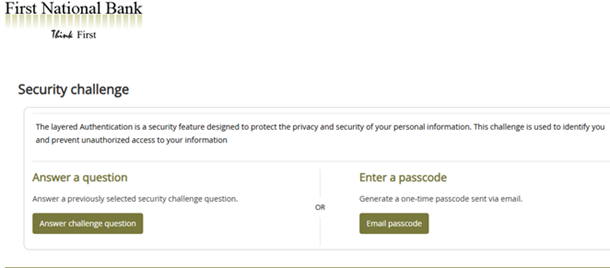
Click on “Answer challenge question” or “Email passcode” and enter answer or passcode. See image below.
Step 3:
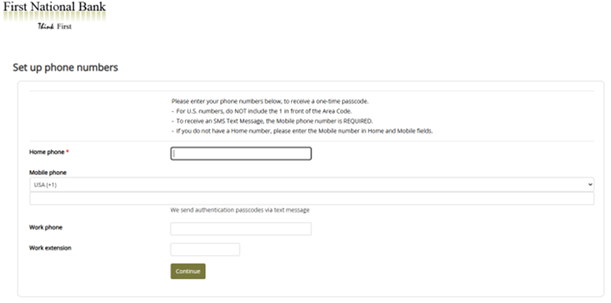
Confirm your Home phone number, enter Mobile phone number, and Work Phone number (Optional). Click “Continue”. See image below.
Step 4:
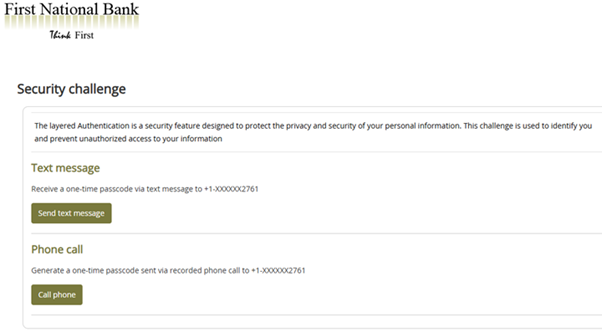
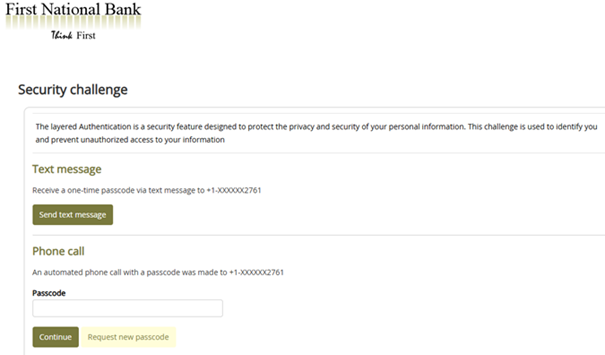
The below screen will appear giving the customer an option to click “Send text message” or click “Call phone”.
The text six-digit One-Time-Passcode will ONLY be sent to the mobile phone number that was entered in step 3.
If different phone numbers are entered for Home, Mobile, and or Work in step 3, then there will be a drop-down arrow to select what phone number you want the system to call for the One-Time-Passcode (OTP). (Home Phone or Mobile Phone or Work Phone.)
Step 5:
Enter the six-digit One-Time-Passcode (OTP)in the Passcode field that was either text or called to your phone and click Continue. See image below.
Step 6:
After successfully verifying the OTP, you will be logged into online banking home screen.
One-Time Passcode (OTP) Customer Login Process on our FNB Mobile App
Step 1:
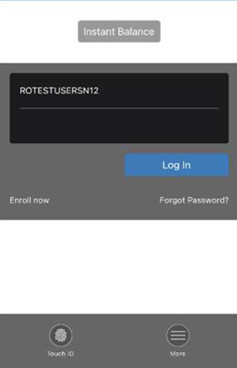
See below picture. Login with username and password to our FNB Mobile App.
Step 2:
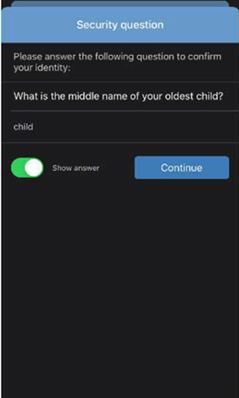
See below picture. Please answer the following Security question to confirm your identity.
Step 3:
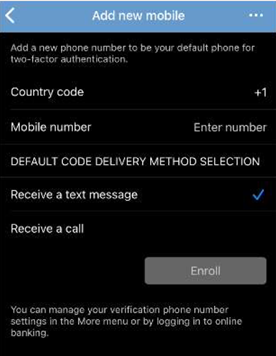
See below picture. Add a new phone number the Mobile number field to be the default phone for the One-Time-Passcode (OTP).
Also, here you can select the Default code delivery method selection
a. Receive a text message for the OTP
b. Or receive a call for the OTP
At the bottom, Tap “Enroll” button on the phone.
Step 4:
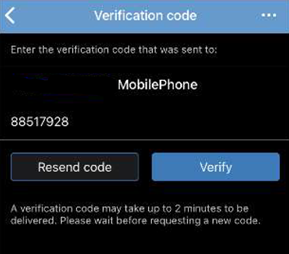
See below picture. Enter the One-Time-Passcode that was sent to your Mobile Phone and tap Verify.
Step 5:
See below picture. Then you will be logged into the FNB Mobile App home Accounts screen.